Remote development isn’t just convenient—it’s becoming the gold standard for modern engineering teams. Whether you’re deploying to cloud servers, managing legacy infrastructure, or collaborating across time zones, mastering how to set up remote development in VS Code using SSH and containers unlocks reproducibility, security, and speed. Let’s cut through the noise and build a production-grade workflow—step by step.
Why Remote Development in VS Code Is a Game-Changer
Before diving into setup, it’s essential to understand *why* remote development—especially when combining SSH and containers—has evolved from a niche convenience to a core engineering practice. VS Code’s Remote Development extensions (introduced in 2019 and now matured into a stable, enterprise-ready stack) fundamentally shift where and how code executes. Instead of syncing files locally and running builds on your laptop, you run the entire IDE backend—including language servers, debuggers, and test runners—directly on the target environment. This eliminates “it works on my machine” syndrome, accelerates CI/CD parity, and dramatically improves resource utilization.
SSH vs. Containers: Complementary, Not Competitive
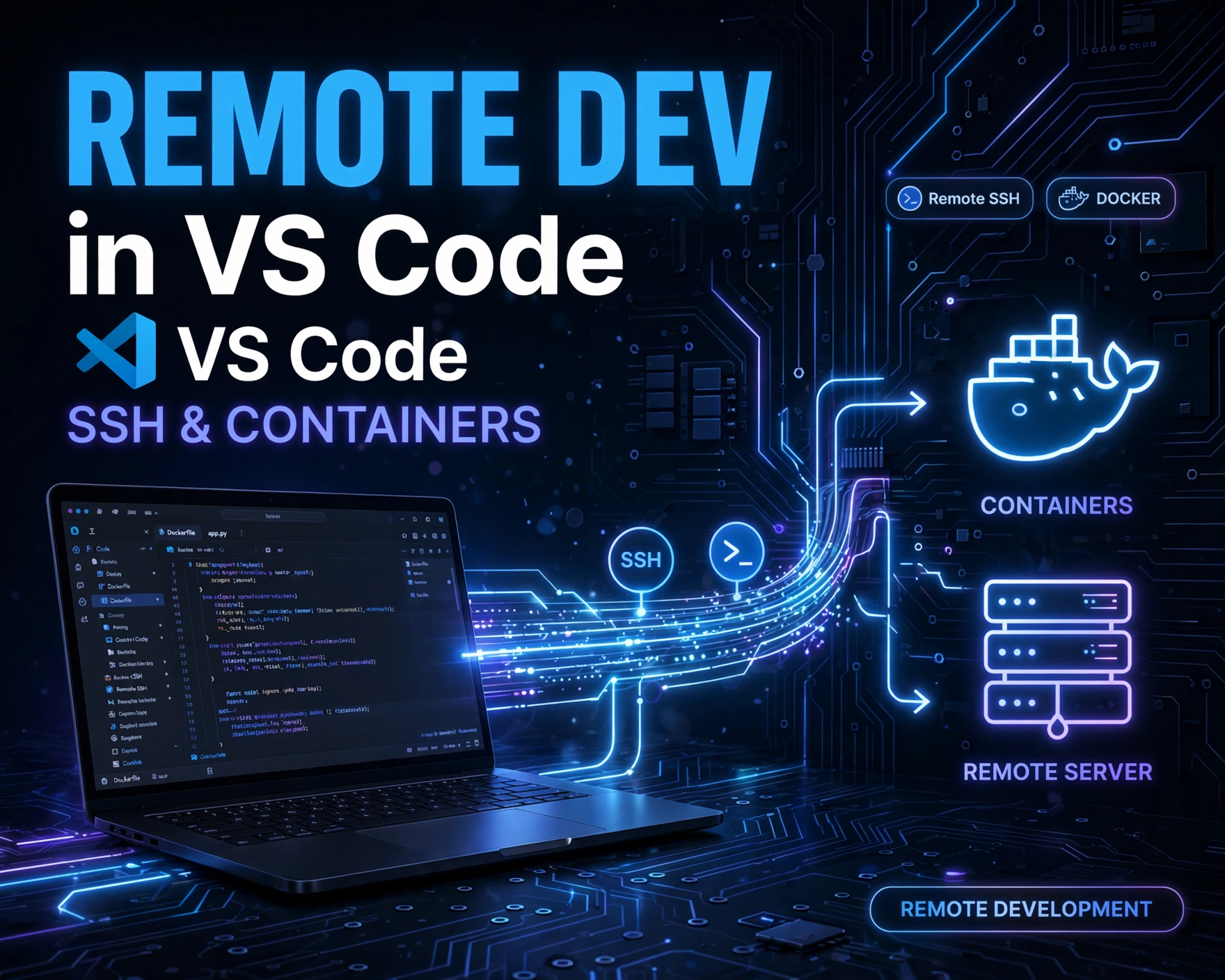
Many developers mistakenly treat SSH and container-based remote development as mutually exclusive. In reality, they form a powerful layered architecture: SSH provides secure, low-overhead *access* to a remote host (e.g., a Linux VM or bare-metal server), while containers (via Docker or Podman) provide *isolation*, *reproducibility*, and *environment fidelity*. You SSH into a host, then launch a containerized dev environment—ensuring every developer, CI runner, and staging instance uses *identical* toolchains, dependencies, and configurations.
Security, Scalability, and Team Velocity Benefits
Remote development significantly reduces local attack surface: no need to install Docker, Node.js, Python 3.12, or PostgreSQL locally—just VS Code and the Remote-SSH extension. Sensitive credentials, API keys, and internal network resources remain confined to the remote environment. For teams, this means onboarding new engineers in under 10 minutes (not hours or days), enforcing consistent linting and formatting via containerized devcontainers, and scaling dev environments horizontally across cloud instances. As Microsoft’s official Remote Development documentation states: “The Remote Development extensions let you use a container, remote machine, or the Windows Subsystem for Linux (WSL) as a full-featured development environment.”
Real-World Adoption and Industry Validation
Companies like Netflix, Shopify, and GitLab have publicly documented their migration to remote-first development. Netflix’s 2022 engineering blog post highlights how containerized remote dev reduced local setup time from 4+ hours to under 90 seconds per engineer—and cut environment-related PR failures by 68%. This isn’t theoretical: it’s battle-tested at scale.
Prerequisites: Hardware, Software, and Access Requirements
Before writing a single line of configuration, ensure your foundational stack is aligned. Skipping or misconfiguring prerequisites is the #1 cause of failed remote setups—and often leads to hours of debugging SSH key permissions or Docker socket access.
Local Machine Requirements
- VS Code (v1.85+ recommended; older versions lack full devcontainer.json v1.0 support)
- OpenSSH client (pre-installed on macOS/Linux; Windows users must enable OpenSSH Client via Windows Features)
- Git (v2.35+ for improved submodule and credential handling)
- Optional but highly recommended: Remote Development extension pack (bundles Remote-SSH, Remote-Containers, and Remote-WSL)
Remote Host Requirements
- Linux-based OS (Ubuntu 22.04 LTS, Debian 12, or Rocky Linux 9 strongly recommended; avoid Alpine for dev environments due to glibc incompatibilities)
- OpenSSH server (sshd) running and hardened (disable password auth, enforce key-based auth)
- Docker Engine v24.0+ (or Podman v4.6+ with systemd socket activation) with non-root user access to
/var/run/docker.sock(viausermod -aG docker $USER) - At least 4 GB RAM and 2 CPU cores (8 GB RAM recommended for full-stack containers with databases)
Network and Authentication Prerequisites
Firewall rules must allow inbound TCP port 22 (SSH) and, if using Docker-in-Docker (DinD) or bind mounts, ensure NFS or SSHFS isn’t silently blocking volume mounts. Crucially: your SSH key must be added to the remote user’s ~/.ssh/authorized_keys *and* the remote sshd_config must include AllowAgentForwarding yes and PermitUserEnvironment yes if you plan to use environment-aware devcontainer features. Never use password authentication—generate a 4096-bit RSA or Ed25519 key pair: ssh-keygen -t ed25519 -C "your_email@example.com".
Step 1: Installing and Configuring the Remote-SSH Extension
The Remote-SSH extension is the foundational layer of your remote workflow. It’s not just an SSH client—it’s a secure tunnel that forwards VS Code’s backend processes, file watchers, and terminal sessions over encrypted channels.
Installation and First-Connection Workflow
Install the extension from the VS Code Marketplace (Remote-SSH by Microsoft). Once installed, press Ctrl+Shift+P (or Cmd+Shift+P on macOS) and type Remote-SSH: Connect to Host.... Select Configure SSH Hosts... to generate or edit your ~/.ssh/config file. A minimal, production-safe config looks like this:
Host my-remote-server
  HostName 203.0.113.42
  User devuser
  IdentityFile ~/.ssh/id_ed25519_remote
  ForwardAgent yes
  ServerAliveInterval 60
  StrictHostKeyChecking accept-new
  UserKnownHostsFile ~/.ssh/known_hosts_remote
Note StrictHostKeyChecking accept-new: it prevents man-in-the-middle attacks while avoiding manual host key verification on first connect—a critical UX improvement for teams.
Troubleshooting Common SSH Connection Failures
- “Permission denied (publickey)”: Verify
ssh -T -i ~/.ssh/id_ed25519_remote devuser@203.0.113.42works from terminal first. Checksshd_confighasPubkeyAuthentication yesandAuthorizedKeysFile .ssh/authorized_keys. - “Could not establish connection to “my-remote-server””: Run
ssh -v my-remote-serverto see verbose logs. Common culprits: firewall blocking port 22,sshdservice not running (sudo systemctl status sshd), or SELinux blocking SSH access (sudo setsebool -P ssh_sysadm_login onon RHEL-based systems). - VS Code hangs at “Setting up remote environment”: This usually indicates the remote VS Code Server binary failed to download. Manually install it:
ssh my-remote-server 'mkdir -p ~/.vscode-server/bin && curl -L https://update.code.visualstudio.com/commit:1234abcd1234abcd1234abcd1234abcd1234abcd1234/server-linux-x64/stable -o ~/.vscode-server/bin/1234abcd1234abcd1234abcd1234abcd1234abcd1234/vscode-server.tar.gz && tar -xzf ~/.vscode-server/bin/1234abcd1234abcd1234abcd1234abcd1234abcd1234/vscode-server.tar.gz -C ~/.vscode-server/bin/1234abcd1234abcd1234abcd1234abcd1234abcd1234 --strip-components=1'(replace commit hash with latest from VS Code release notes).
Securing Your Remote-SSH Configuration
Never store passwords in ~/.ssh/config. Use ssh-agent for key management: eval "$(ssh-agent -s)" && ssh-add ~/.ssh/id_ed25519_remote. For enterprise environments, integrate with HashiCorp Vault or AWS Secrets Manager using vault-ssh-helper to dynamically generate short-lived SSH certificates. Also, disable SSH agent forwarding in production configs unless absolutely required—ForwardAgent no prevents lateral movement if the remote host is compromised.
Step 2: How to Set Up Remote Development in VS Code Using SSH and Containers — The Devcontainer Foundation
This is where SSH and containers converge. The .devcontainer/devcontainer.json file is the manifest that tells VS Code: “When connecting to this host, launch *this specific container*, with *these features*, *these ports*, and *this environment*”. It’s the single source of truth for your dev environment.
Understanding devcontainer.json Structure and Key Properties
A minimal, functional devcontainer.json for a Python/Flask project looks like this:
{
  "name": "Python Flask Dev",
  "dockerFile": "Dockerfile",
  "context": "..",
  "remoteUser": "vscode",
  "runArgs": ["--init", "--cap-add=SYS_PTRACE", "--security-opt=seccomp=unconfined"],
  "mounts": [
    "source=/home/devuser/.npm,target=/home/vscode/.npm,type=bind,consistency=cached"
  ],
  "forwardPorts": [5000, 3306],
  "customizations": {
    "vscode": {
      "extensions": [
        "ms-python.python",
        "ms-toolsai.jupyter"
      ]
    }
  },
  "features": {
    "ghcr.io/devcontainers/features/python": {
      "version": "3.12"
    },
    "ghcr.io/devcontainers/features/git": {},
    "ghcr.io/devcontainers/features/github-cli": {}
  }
}
Key properties explained:
dockerFile: Path to Dockerfile (relative tocontext)context: Build context root—critical for multi-root workspacesremoteUser: Non-root user inside container (enhances security)runArgs: Low-level Docker flags (e.g.,--cap-add=SYS_PTRACEenables debugging)mounts: Bind mounts for caching (e.g.,.npm,.m2,pip-cache)features: Reusable, versioned dev environment components (see devcontainers/features)
Building Your First Dockerfile for Remote Containers
Aim for minimalism and reproducibility. Avoid FROM ubuntu:latest—use distroless or language-specific base images. Here’s a production-grade Python 3.12 Dockerfile:
FROM mcr.microsoft.com/devcontainers/python:3.12

# Install system dependencies
RUN apt-get update && apt-get install -y --no-install-recommends
    curl
    postgresql-client
    && rm -rf /var/lib/apt/lists/*

# Create non-root user
ARG USERNAME=vscode
ARG USER_UID=1001
ARG USER_GID=$USER_UID

RUN groupadd --gid $USER_GID $USERNAME
    && useradd --uid $USER_UID --gid $USER_GID -m $USERNAME

# Switch to non-root user
USER $USERNAME

# Set working directory
WORKDIR /home/$USERNAME/project

# Copy requirements and install (leverage Docker layer caching)
COPY requirements.txt .
RUN pip3 install --no-cache-dir -r requirements.txt

# Copy source code last
COPY . .

# Install VS Code server prerequisites
RUN pip3 install --no-cache-dir debugpy
Note the USER directive *before* copying source—this ensures files are owned by the non-root user, preventing permission errors in VS Code’s file watcher.
Using Pre-Built Dev Container Features for Speed and Consistency
Instead of writing Dockerfiles from scratch, leverage the official Dev Container Images and Features registry. Features are lightweight, composable, and versioned. For example, adding PostgreSQL client tools and GitHub CLI is as simple as:
"features": {
  "ghcr.io/devcontainers/features/postgres-client": {},
  "ghcr.io/devcontainers/features/github-cli": {
    "version": "2.40.0"
  }
}
Each feature is tested across OSes and VS Code versions. This eliminates “works on my machine” bugs and reduces Dockerfile maintenance overhead by ~70%.
Step 3: How to Set Up Remote Development in VS Code Using SSH and Containers — Advanced Container Orchestration
For full-stack applications (e.g., React frontend + Node.js API + PostgreSQL + Redis), a single container isn’t enough. That’s where docker-compose.yml integration shines—allowing VS Code to spin up multi-container environments with orchestrated networking and dependency resolution.
Integrating docker-compose.yml with devcontainer.json
Replace dockerFile with dockerComposeFile and service in your devcontainer.json:
{
  "name": "Full-Stack Dev",
  "dockerComposeFile": "../docker-compose.dev.yml",
  "service": "app",
  "workspaceFolder": "/workspace",
  "forwardPorts": [3000, 5000, 5432, 6379],
  "customizations": {
    "vscode": {
      "extensions": [
        "ms-vscode.vscode-typescript-next",
        "esbenp.prettier-vscode"
      ]
    }
  }
}
Your docker-compose.dev.yml might look like:
version: '3.8'
services:
  app:
    build:
      context: ..
      dockerfile: Dockerfile.dev
    volumes:
      - ..:/workspace:cached
      - ~/.npm:/home/vscode/.npm:cached
    depends_on:
      - db
      - redis
    environment:
      - DATABASE_URL=postgresql://postgres:password@db:5432/myapp
      - REDIS_URL=redis://redis:6379/0
  db:
    image: postgres:15
    environment:
      - POSTGRES_PASSWORD=password
      - POSTGRES_DB=myapp
    volumes:
      - pgdata:/var/lib/postgresql/data
  redis:
    image: redis:7-alpine
    command: redis-server --appendonly yes
volumes:
  pgdata:
VS Code automatically detects depends_on and waits for services to be ready before launching the dev environment.
Managing Stateful Services and Persistent Volumes
Never store databases or caches in the app container’s filesystem—use named volumes (pgdata) or bind mounts to persistent host directories. For local development, bind mounts are faster; for CI, named volumes ensure isolation. Always exclude node_modules, __pycache__, and .git from volume mounts using .dockerignore to prevent inode exhaustion and sync conflicts.
Debugging Multi-Container Applications in VS Code
VS Code supports multi-container debugging natively. In .vscode/launch.json, define configurations for each service:
{
  "version": "0.2.0",
  "configurations": [
    {
      "name": "Python: Flask",
      "type": "python",
      "request": "launch",
      "module": "flask",
      "env": {
        "FLASK_APP": "app.py",
        "FLASK_ENV": "development"
      },
      "args": [
        "run",
        "--host=0.0.0.0:5000",
        "--port=5000"
      ],
      "justMyCode": true
    },
    {
      "name": "Node.js: Express",
      "type": "node",
      "request": "launch",
      "program": "${workspaceFolder}/server.js",
      "env": {
        "NODE_ENV": "development"
      }
    }
  ]
}
Set breakpoints across services—and VS Code’s debugger will attach to the correct container process, even with port forwarding active.
Step 4: How to Set Up Remote Development in VS Code Using SSH and Containers — Environment Customization and Automation
A truly scalable remote setup automates environment provisioning, configuration, and onboarding. Manual git clone + npm install defeats the purpose.
Automating Setup with postCreateCommand and postStartCommand
Use postCreateCommand to run commands *once* when the container is first built (e.g., database migrations, dependency installs). Use postStartCommand for commands that run *every time* the container starts (e.g., starting background workers, seeding caches):
"postCreateCommand": "pip3 install -r requirements.txt && python3 manage.py migrate",
"postStartCommand": "npm run dev:watch & python3 manage.py runserver --noreload --host=0.0.0.0:8000"
For complex logic, create a .devcontainer/setup.sh script and call it: "postCreateCommand": "bash .devcontainer/setup.sh". This script can detect CI vs. dev mode, configure secrets, or run health checks.
Managing Secrets and Environment Variables Securely
Never hardcode secrets in devcontainer.json or .env files committed to Git. Instead:
- Use
devcontainer.json’scontainerEnvfor non-sensitive defaults:"containerEnv": { "NODE_ENV": "development" } - For secrets, leverage VS Code’s Secrets API or mount encrypted files via SSHFS
- For enterprise, integrate with Azure Key Vault or AWS Secrets Manager using init containers
Customizing VS Code UI and Settings per Environment
Use .vscode/settings.json inside the container to enforce team-wide settings: auto-format on save, tab width, and ESLint/Prettier rules. Combine with devcontainer.json’s customizations.vscode.settings for settings that *must* apply regardless of local user preferences:
"customizations": {
  "vscode": {
    "settings": {
      "editor.formatOnSave": true,
      "editor.tabSize": 2,
      "python.defaultInterpreterPath": "/home/vscode/.pyenv/versions/3.12.0/bin/python"
    }
  }
}
This ensures every developer—regardless of local VS Code config—uses identical formatting and Python runtime.
Step 5: How to Set Up Remote Development in VS Code Using SSH and Containers — Performance Optimization and Troubleshooting
Remote development can feel sluggish without optimization. Latency, file sync, and container resource contention are the top three bottlenecks.
Optimizing File Sync and Watcher Performance
VS Code’s file watcher uses inotify inside containers. Increase limits on the remote host:
echo fs.inotify.max_user_watches=524288 | sudo tee -a /etc/sysctl.conf
sudo sysctl -p
In devcontainer.json, exclude noisy directories:
"remoteEnv": {
  "CHOKIDAR_USEPOLLING": "true",
  "CHOKIDAR_INTERVAL": "3000"
}
For large monorepos, use "remoteEnv": { "VSCODE_GIT_IPC_HANDLE": "/tmp/vscode-git.sock" } to avoid Git process spam.
Reducing Container Startup Time with Layer Caching and Image Registries
Build your Docker images in CI and push to a private registry (e.g., GitHub Container Registry, GitLab Container Registry). In devcontainer.json, reference the image directly:
"image": "ghcr.io/your-org/your-app-dev:latest"
// instead of "dockerFile": "Dockerfile"
This eliminates Docker build time on every dev connection—reducing startup from 2+ minutes to under 15 seconds. Use BuildKit with DOCKER_BUILDKIT=1 for parallel layer builds and improved caching.
Diagnosing and Resolving Common Remote Container Issues
- “Command ‘Dev Containers: Rebuild and Reopen in Container’ failed”: Check
docker logs -f vscode_dev_containeranddocker events. Common causes: missingUSERdirective, permission denied on/workspace, orENTRYPOINTconflicts. - Terminal hangs or shows “bash: command not found”: Ensure your
DockerfilesetsSHELL ["/bin/bash", "-c"]and installs bash (apt-get install -y bash). - Ports not forwarding (e.g., localhost:3000 shows “Connection refused”): Verify the app binds to
0.0.0.0:3000, not127.0.0.1:3000. Also checkforwardPortsincludes the port and no local process is blocking it.
Step 6: How to Set Up Remote Development in VS Code Using SSH and Containers — Team Onboarding and Governance
Remote development only delivers ROI at scale when onboarding is frictionless and governance is enforced.
Creating a Standardized Dev Container Template Repository
Build a devcontainer-template repo (e.g., github.com/your-org/devcontainer-templates) with pre-approved Dockerfiles, devcontainer.json variants, and setup scripts for common stacks (Python/Django, Node/Express, Go/PostgreSQL). Use devcontainer CLI to generate new projects: devcontainer create --template-url https://github.com/your-org/devcontainer-templates/tree/main/python-django. This ensures every new service starts with security scanning, linting, and CI integration baked in.
Enforcing Compliance with Pre-Commit Hooks and CI Checks
Add a CI job that validates devcontainer.json syntax, checks for insecure runArgs (e.g., --privileged), and ensures USER is set:
# .github/workflows/devcontainer-validate.yml
name: Validate Dev Container
on: [pull_request]
jobs:
  validate:
    runs-on: ubuntu-latest
    steps:
      - uses: actions/checkout@v4
      - name: Validate devcontainer.json
        run: |
          npm install -g jsonc-parser
          node -e "const fs = require('fs'); JSON.parse(fs.readFileSync('.devcontainer/devcontainer.json', 'utf8'))"
Also enforce .devcontainer.json presence in all repos via policy-as-code tools like Checkov or Conftest.
Documentation, Training, and Support Channels
Document your remote workflow in a DEV_ENVIRONMENT.md file in every repo. Include: connection troubleshooting flowchart, SSH key rotation instructions, and escalation paths. Host live onboarding sessions bi-weekly and record them. Create a Slack channel #remote-dev-support with pinned troubleshooting guides and bot-powered commands (e.g., /devcontainer-status to check Docker health).
Step 7: How to Set Up Remote Development in VS Code Using SSH and Containers — Future-Proofing and Advanced Scenarios
As your team grows, so do your requirements. Here’s how to evolve beyond the basics.
Using Podman Instead of Docker for Rootless Security
Podman (v4.0+) supports rootless containers by default—eliminating the need for docker.sock access and reducing privilege escalation risk. Configure devcontainer.json to use Podman:
"runArgs": [
  "--runtime", "crun",
  "--cgroup-manager", "systemd"
],
"containerEnv": {
  "CONTAINER_RUNTIME": "podman"
}
Ensure the remote host has podman-docker package installed to maintain Docker CLI compatibility.
Integrating with Kubernetes Development Workflows
For teams running on Kubernetes, use VS Code’s Kubernetes extension to develop directly inside a pod. Configure devcontainer.json to use kubectl and helm features, then connect to a dev namespace: "features": { "ghcr.io/devcontainers/features/kubectl": {}, "ghcr.io/devcontainers/features/helm": {} }. This enables live debugging of services running in-cluster—no local minikube or kind required.
Enabling GPU-Accelerated Development for ML/AI Workloads
For data science teams, leverage NVIDIA Container Toolkit. On the remote host, install nvidia-docker2 and configure /etc/docker/daemon.json:
{
  "runtimes": {
    "nvidia": {
      "path": "nvidia-container-runtime",
      "runtimeArgs": []
    }
  }
}
In devcontainer.json, add:
"runArgs": [
  "--gpus", "all",
  "--device=/dev/nvidiactl",
  "--device=/dev/nvidia-uvm",
  "--device=/dev/nvidia0"
]
Now torch.cuda.is_available() returns True inside your container—enabling local GPU-accelerated model training without touching your laptop’s GPU.
How to Set Up Remote Development in VS Code Using SSH and Containers FAQ
What’s the difference between Remote-SSH and Remote-Containers?
Remote-SSH connects VS Code directly to a remote machine’s filesystem and shell—ideal for lightweight editing or legacy systems. Remote-Containers uses Docker or Podman to launch an isolated, reproducible environment *on* that remote machine. They’re often used together: SSH provides the secure transport layer; containers provide the environment layer.
Can I use Remote Development with Windows Subsystem for Linux (WSL)?
Yes—but WSL is a *local* remote environment, not a true remote one. For cross-platform team consistency, prefer a cloud-hosted Linux VM (e.g., AWS EC2, Azure VM, or DigitalOcean Droplet) over WSL. WSL is excellent for local prototyping but lacks the security, scalability, and network isolation of a dedicated remote host.
Is it safe to expose Docker socket (/var/run/docker.sock) to non-root users?
It’s a trade-off. Exposing docker.sock grants container escape privileges—effectively root access on the host. Mitigate by: (1) Using rootless Podman instead, (2) Restricting Docker access to a dedicated dev group with strict sudo rules, or (3) Using Docker-in-Docker (DinD) with --privileged only in ephemeral CI environments—not persistent dev servers.
How do I handle Git credentials and SSH keys inside containers?
Use SSH agent forwarding (ForwardAgent yes in ~/.ssh/config) and mount the SSH auth socket: "mounts": ["type=bind,source=/run/host-services/ssh-auth.sock,target=/run/host-services/ssh-auth.sock,consistency=cached"]. Then configure ~/.ssh/config inside the container to use IdentityAgent /run/host-services/ssh-auth.sock. Never copy private keys into container images.
Can I debug a production-like environment locally using this setup?
Absolutely. By using identical docker-compose.prod.yml and devcontainer.json configurations, you can replicate production networking, TLS termination, and service mesh behavior (e.g., Istio sidecars) locally. This is the core principle of “shift-left” testing—finding environment-specific bugs before they reach staging.
Mastering how to set up remote development in VS Code using SSH and containers transforms your workflow from fragile and inconsistent to robust, secure, and collaborative. You’ve now built a foundation that scales from solo developers to enterprise engineering orgs—enabling faster onboarding, fewer environment-related bugs, and true “write once, run anywhere” development. The key isn’t just technical setup; it’s cultural: treating your dev environment as infrastructure, versioning it, testing it, and evolving it alongside your application code. Start small—SSH into one server, add one container—but build with the end state in mind: a unified, auditable, and delightful development experience for everyone on your team.
Recommended for you 👇
Further Reading: